
Make room for possibilities.
Download the full Windows installer. Run it, choose the installation folder and follow the steps. Keep enough space for the app, updates and your own backups.
Get the latest releaseA walkthrough from your first download to a setup that feels like you.
Download the full Windows installer. Run it, choose the installation folder and follow the steps. Keep enough space for the app, updates and your own backups.
Get the latest releaseUse the same account on the website and in the desktop app. New users confirm their email and claim a unique 3–16 character username. A new sign-in session requires an email code; a remembered verified session can be restored without a new code.
Your username accepts English letters, numbers, dots and underscores. Your subscription or administrator access is checked by the server.
Open your accountSelect the game in ZINIX. The app tries to find its executable automatically; the game’s settings let you select a different location if needed. Follow the instructions for the intended game session.
Use the appropriate offline session for Elden Ring, and the supported single-player session for ARK. These settings do not grant access to protected online servers.
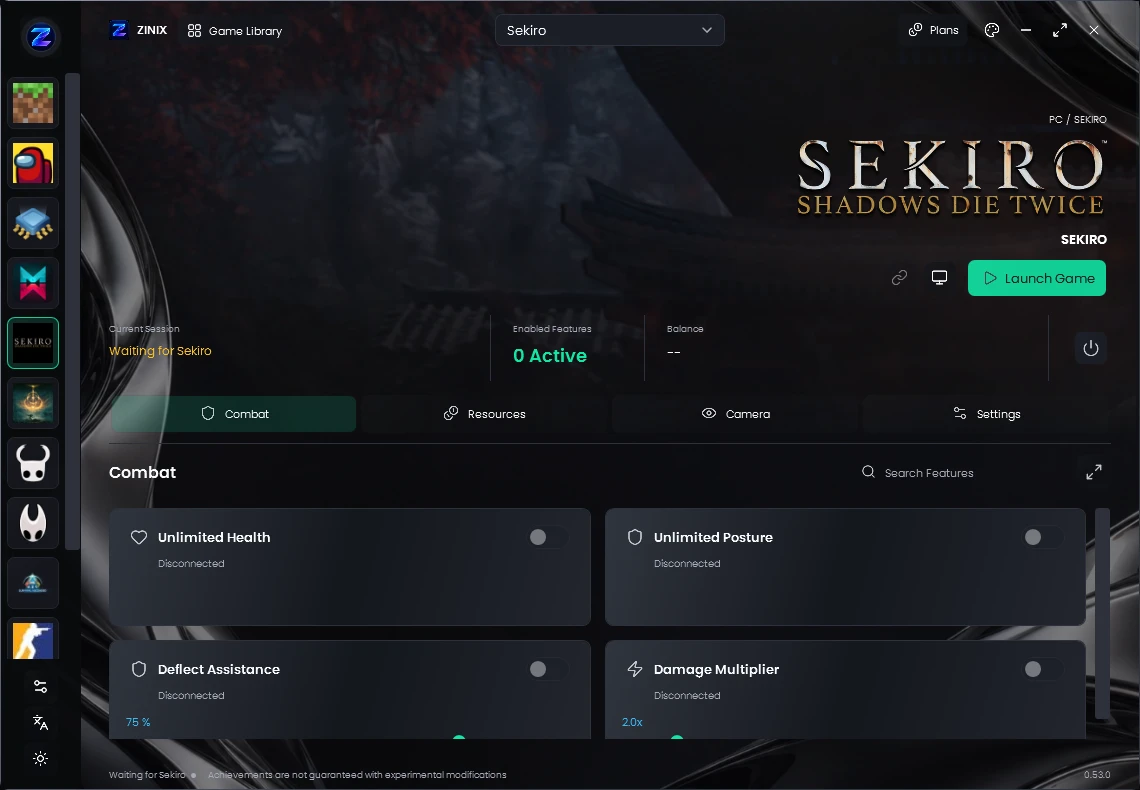
Enable a feature from its switch. Adjust values within the available limits and assign independent hotkeys. Some controls depend on the game scene, owned abilities or a compatible version. The connection status tells you what is ready.
A saved profile includes the selected features, values and shortcuts from every section of one game. It is not tied to the section you were viewing.
Update selected replaces its saved setup with the current one. Rename changes its name. Delete removes the saved profile while keeping the current settings. Up to 30 profiles are kept locally per game and account.
Apply waits for a verified game connection when necessary. Unavailable features are reported. Currency additions, ability unlocks and other one-time actions are never replayed; profiles are not applied automatically at app startup.
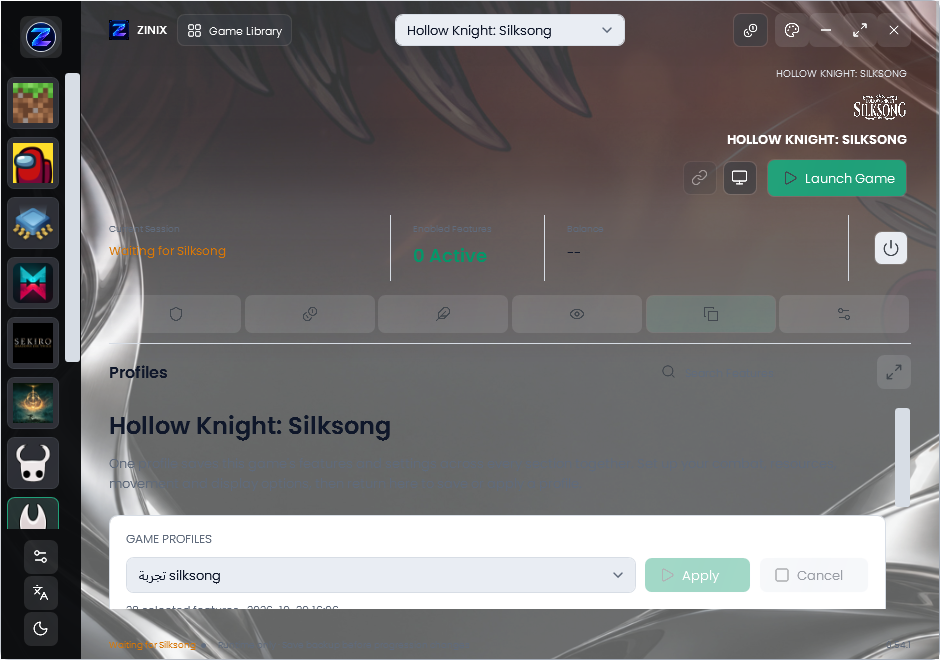
Use the desktop profile’s backup center to keep settings copies. Optional cloud synchronization is separate from local storage. Keep your own game-save backups before permanent currency or progression changes.
Explore common questions